Here are the steps for installing and launching Future World Vision: Mega City, and starting your exploration!
If you want a PDF download of the instructions, click here.
FUTURE WORLD VISION: Mega City 2070 Install Instructions


< Back to Home
Mac OS:
Microsoft Edge Browser Additional Preliminary Instructions:
Windows PC:
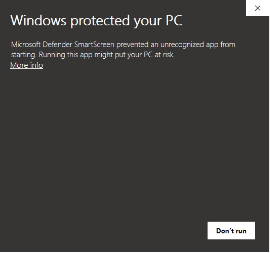
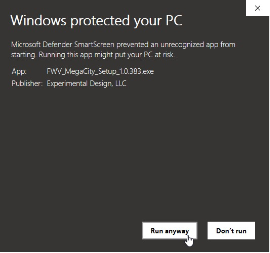
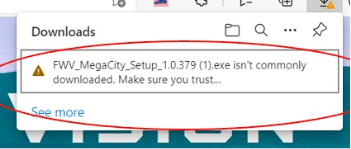
1. Click the installer link (the file ending in .exe) and you will see a screen alerting you that this is an unknown application. Do NOT close window, but instead, click “more info.”
a. When you see this screen, click “see more.”
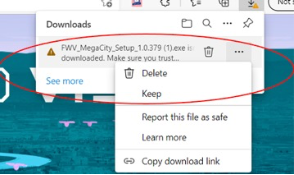
b. Once you see this screen, select the three dots to the right to get this drop-down menu. Select “Keep.”
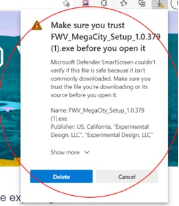
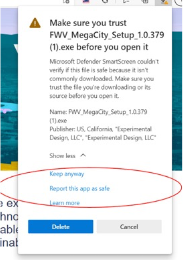
c. The next screen will ask if you trust the application. Select “Show More.”
d. From the new options, choose “Keep Anyway.”
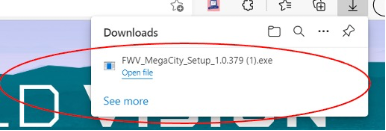
e. Once here, select “Open file.”
f. Continue with Windows PC install instructions.
**NOTE** If you are using Microsoft Edge browser, please proceed to that section below and follow those preliminary steps before returning to Step 1.
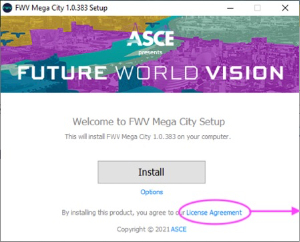
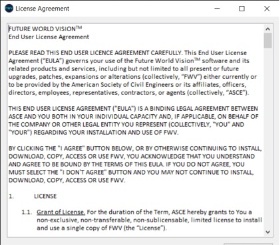
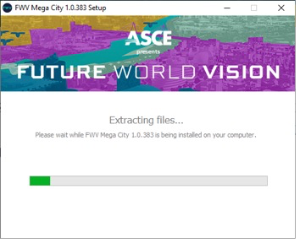
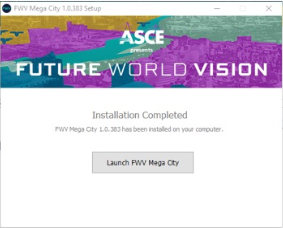
3. Click “Install.” The install will start, and may take between 5-20 minutes depending on the speed of your computer (the software is approximately 5 gigabytes). [By installing the app you are accepting the license agreement, you can click “License Agreement” if you wish to read it].
4. Next, click either the “Launch FWV Mega City” button in the installer window or the Future World Vision: Mega City icon on your desktop to launch the app.
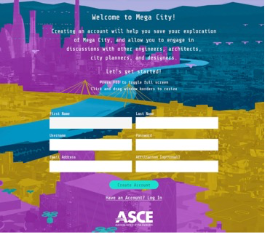
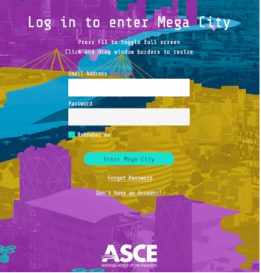
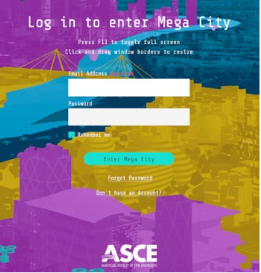
5. After opening the app, you can log in if you already have an account, or click “Don’t Have an Account?” to create one.
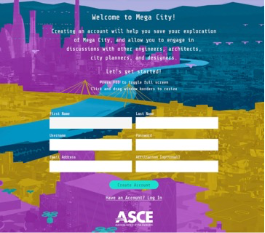
6. On the create account screen, enter your name, email address and a password. You can choose to list an organization or university with which you are affiliated.
7. On the first screen upon entering Future World Vision: Mega City 2070, you’ll have the opportunity to watch various tutorial videos for instructions about navigation and features as well as to take themed guided tours for an introduction to the content covered in the app – enjoy exploring! Don’t forget to engage with other users by commenting or replying to comments in the callout informational boxes, or by participating in group discussions in your dashboard if you are a part of a group.

App Icon
If you run into errors that can’t be fixed by restarting or reinstalling, please email us at:
help@experimental.design
help@experimental.design
1. Click the install link and the download will start. It may take some time as it is a large application (5gb)
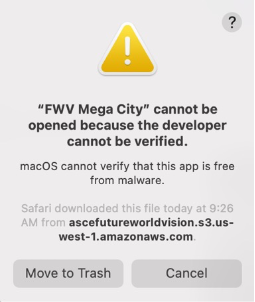
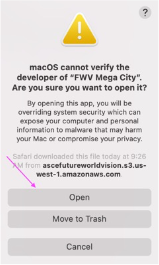
2. When ready to open, you may be warned that you are opening an unrecognized app.
Click “Cancel.”
2. When ready to open, you may be warned that you are opening an unrecognized app.
Click “Cancel.”
© 2022 ASCE
Future World Vision
Skip to Microsoft Edge Browser Instructions
Skip to Mac OS Instructions
Start with these steps before continuing with Step #1 above:
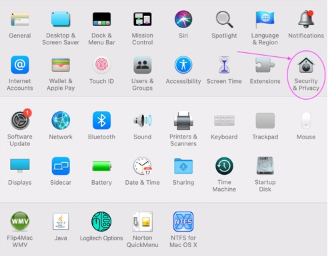
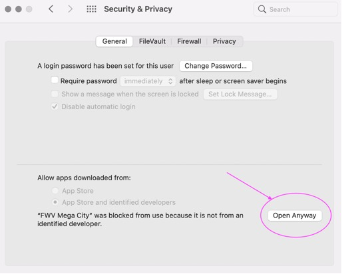
3. To get past that, go to your Systems Preferences and choose “Security and Privacy.”
If you run into errors that can’t be fixed by restarting or reinstalling, please email us at:
help@experimental.design
help@experimental.design
4. In that window, you’ll see “Allow Apps downloaded from:” and the FWV Mega City app should show up. Click “Open Anyway” and you should be clear to open the app.
5. Now, you can log in if you already have an account, or click “Don’t Have an Account?” to create one.
6. On the create account screen, enter your name, email address and a password. You can choose to list an organization or university with which you are affiliated.
7. On the first screen upon entering Mega City, you’ll have the opportunity to watch various tutorial videos for instructions about navigation and features as well as to take themed guided tours for an introduction to the content covered in the app – enjoy exploring! Don’t forget to engage with other users by commenting or replying to comments in the callout informational boxes, or by participating in group discussions in your dashboard if you are a part of a group.

App Icon